
Single Sign-On for Small Business: A Plain Guide
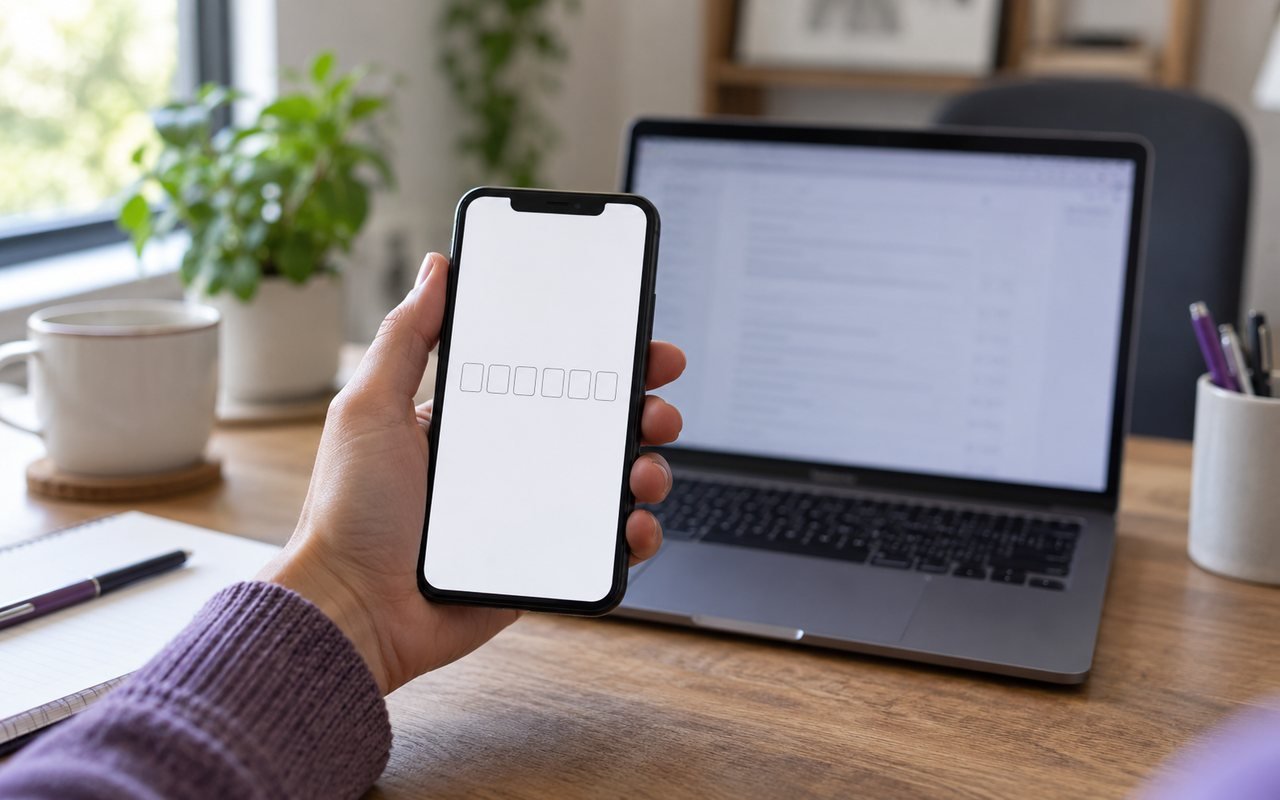
Single sign-on for small business means staff log in once and open every work app without typing more passwords. This guide explains how it works, what it protects, what to check before you buy, and when it is not worth the effort for a team with only a few apps.
Single sign-on for small business: what it means
Single sign-on means you prove who you are once, and every connected system trusts that proof. Think of a hotel key card. Reception checks your identity once, and the card then opens your room and the gym.
Without it, every app has its own lock and its own key. Staff end up reusing passwords, writing them down or asking the office manager to reset them again.
SSO for business: the problems it solves
Most small firms meet the same few problems as they add apps.
A new starter needs an account in every app, and someone has to remember them all.
A leaver keeps access to apps nobody remembered to close.
Forgotten passwords eat time every week.
Each app asks for security in a different way.
Nobody can see who signed in to what.
One login point fixes the first four directly, and a central log answers the fifth.
Why one login can be safer
Fewer passwords means less pressure to reuse them. The UK National Cyber Security Centre notes that single sign-on lets staff use one set of credentials across several applications, which reduces the burden of remembering many passwords. You can read its advice on password administration for system owners.
The same guidance carries a warning. If one login opens many apps, a stolen login exposes more. So the NCSC recommends pairing single sign-on with multi-factor authentication.
Multi-factor authentication comes with it
Multi-factor authentication asks for a second proof, such as a code from an authenticator app, as well as the password. The NCSC publishes guidance on multi-factor authentication for administrators who manage staff access.
Its advice is to favour methods that resist phishing. Text-message codes are better than nothing, but an authenticator app or a passkey is stronger. Whichever you choose, apply it at the one sign-in point, so every app gets the same protection.
A simple rollout plan
Change sign-in in small steps, so nobody is locked out on a Monday morning.
List every app staff use, and who owns each one.
Close accounts for people who have left.
Switch on multi-factor authentication for the owner and managers first.
Connect two or three of the busiest apps and test with a small group.
Move everyone else across, and keep the old logins for a short, agreed period.
Review the sign-in log after a month and remove apps nobody opens.
Tell staff what is changing and why before you start. A short note that explains the second code step prevents most of the help requests.
Staff login security that you can see
Security you cannot see is hard to trust. A good setup gives the owner one screen that shows who has an account, what they can open and when they last signed in.
Look for these basics:
A role for the owner who can create users and lock accounts.
A way to reset someone's authenticator if they lose a phone.
A log of sign-ins with the time and device.
Locking one account closes access to every app at once.
What to ask a supplier
Not every product that says it offers single sign-on does the same job. Before you buy, ask:
Which of my apps does it connect to, and how?
Is multi-factor authentication required for everyone, or optional?
Can I remove a leaver in one step?
Where is the login log kept, and for how long?
What happens to my staff if your service is down?
Write the answers down. Vague answers to the last question are a warning sign, because a sign-in outage stops everyone.
When you do not need it yet
A team with two or three apps and five staff can often manage with a password manager and multi-factor authentication switched on in each app. The NCSC recommends password managers as a sensible way to store unique passwords.
Single sign-on starts to pay for itself when you have three or more apps, staff who join and leave often, or customers who ask how you control access. Until then, tidy up passwords first.
How LAMTANS Single Sign-On fits
We built our own single sign-on for the LAMTANS Group, and it is live there today. Staff sign in with a password and an authenticator code, then click a card to open an app already signed in. Owners add and reorder the cards without code.
It is not yet packaged for outside customers, so we say so plainly. Read the details on the Single Sign-On product page, or ask us about a bespoke build.
Protect what sits behind the login
A strong sign-in protects the door, not the house. Keep the apps themselves patched, and keep tested backups of the data inside them. Our guide to website backup best practice shows what a sound routine looks like, and LAMTANS Guardian automates it.
Sources
- Password administration for system owners, NCSC
- Multi-factor authentication for your corporate online services, NCSC
Designed & developed by LAMTANS Technologies LLC, USA — part of the LAMTANS Group
Frequently asked questions
Is single sign-on only for large companies?
No. It helps any firm with several web apps and changing staff. Very small teams may manage without it at first.
Does single sign-on replace passwords?
Not entirely. It reduces how many passwords staff need, but the one remaining login must be strong and protected by a second factor.
What if the sign-in service goes down?
Staff may be unable to open connected apps. Ask every supplier how outages are handled and whether an emergency route exists.
Is multi-factor authentication really needed?
Yes. The NCSC recommends it with single sign-on, because one stolen password would otherwise open many apps.
Can I add single sign-on to apps I already use?
Often yes, if the apps support standard sign-in methods. Check each app before you commit.